
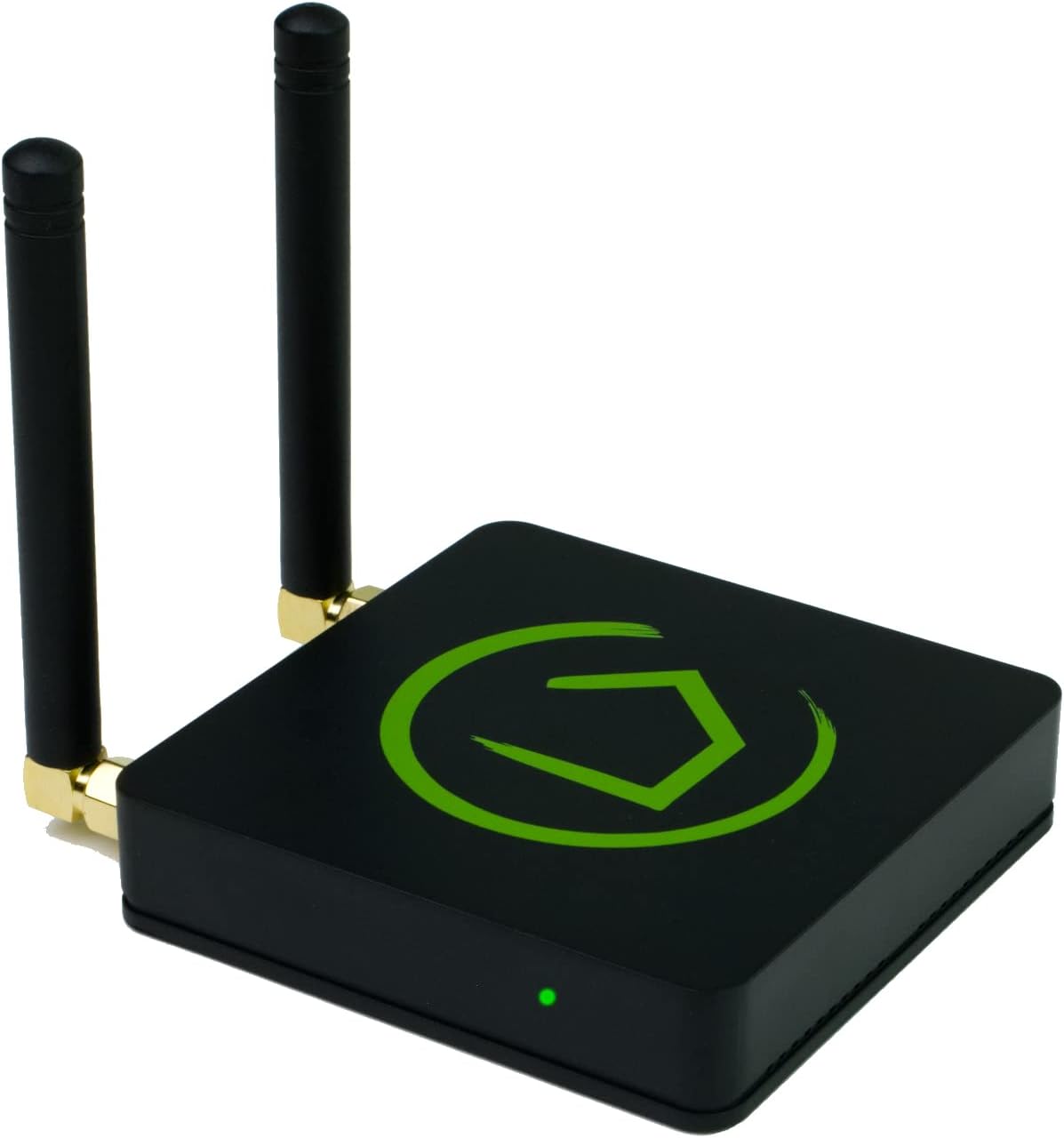
Hubitat and Alexa have been the perfect smart home couple in my house for 3 years. Hubitat runs everything locally and fast, Alexa is just the voice. That was true until I accidentally deleted the entire integration while trying to move one Zigbee plug to Home Assistant.
If your setup is broken and Alexa keeps saying “I’m sorry, something went wrong,” I did the exact same thing. Re-adding the skill in Hubitat alone does not fix it. Here is why the link breaks and how to fix it in 3 minutes.
Why This Combo Is Still The Best
Let me be clear: this was 100% my fault. Hubitat just released an update that moved the Amazon Echo Skill from Apps to Integrations. The new menu is cleaner, but I didn’t read the screen before I clicked Remove.
The system is brilliant when left alone. Your Hubitat hub handles all your automations locally for speed and privacy. The official skill securely exposes your chosen devices to your Echo speakers. No cloud delay.
How I Broke The Integration Migrating Zigbee
I built a new Home Assistant machine. I’m a total beginner with it, so I wanted to migrate just one Zigbee smart plug from Hubitat over to Home Assistant for testing.
In Hubitat, you have to clear the “In Use By” list before you exclude a device. I went to the device, saw it was in use by the Amazon Echo Skill, and clicked it.
Instead of unchecking the single plug, I clicked Remove and deleted the ENTIRE integration. I didn’t even notice. I paired the plug to Home Assistant and felt smart for two hours.
Why You Get The “Something Went Wrong” Error
When you delete the skill in Hubitat, you break the OAuth link between Hubitat cloud and Amazon. The two platforms are no longer connected. Alexa still holds a cached list of ghost devices and tries to send commands to an endpoint that no longer exists.
That is why some lights work and some give you the error. Re-adding it in Hubitat alone won’t generate a new token on Amazon’s side. This is why a full reset of Hubitat and Alexa is required.

How To Fix Hubitat and Alexa In 3 Steps
Step 1: Re-Add The Skill in Hubitat
- Go to Hubitat > Apps > Add Built-In App > Amazon Echo Skill (or Integrations > Amazon Echo Skill on new firmware)
- Re-select ALL devices you want Alexa to control
- Click Done and wait 2 minutes for the cloud to sync
Step 2: Disable and Re-Enable The Skill in The Alexa App
- Open Alexa app on your phone
- Go to More > Skills & Games > Your Skills > Hubitat
- Tap Settings > Disable Skill
- Tap Enable To Use and log in again. This is the critical handshake that repairs Hubitat and Alexa.
- Say “Alexa, discover devices”
Step 3: Test Voice Commands
Test voice commands on every Echo. Delete any duplicate offline devices in the Alexa app under Devices. Your Hubitat and Alexa integration should now be fully restored.
The Right Way To Move A Device Without Breaking Everything
- In Hubitat, open the device > In Use By > Amazon Echo Skill > UNCHECK only that device. Never click Remove.
- Then click Remove Device on the device page itself to do a proper Zigbee exclusion.
- Pair it in Home Assistant.
You can run both systems side-by-side. Many of us use Hubitat for Zigbee/Z-Wave and Home Assistant for dashboards. I explain the differences in my Hubitat vs Home Assistant guide.
Final Lesson
Don’t touch the Remove button before coffee. And screenshot your device list in the Echo Skill before you change anything. It will save you 30 minutes of re-checking boxes.